
Do you use a Microsoft account (Outlook, Microsoft 365, Azure AD) and want to register or sign in to Freelo quickly and without a password? It is possible. Freelo now supports both sign-in and registration via a Microsoft account.
Registration
- On the registration page, click Register with Microsoft.
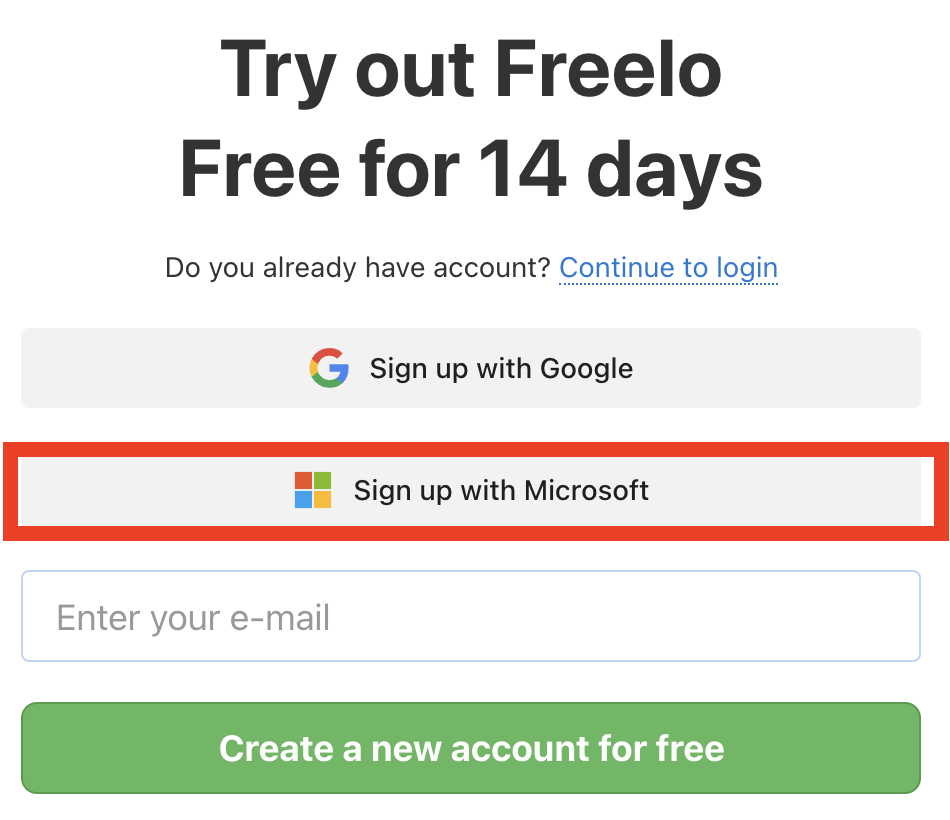
Registration in Freelo via the website. -
You will be redirected to the Microsoft sign-in page.
-
Select the Microsoft account you want to link with Freelo, or sign in.
- Confirm your consent to share data with Freelo.
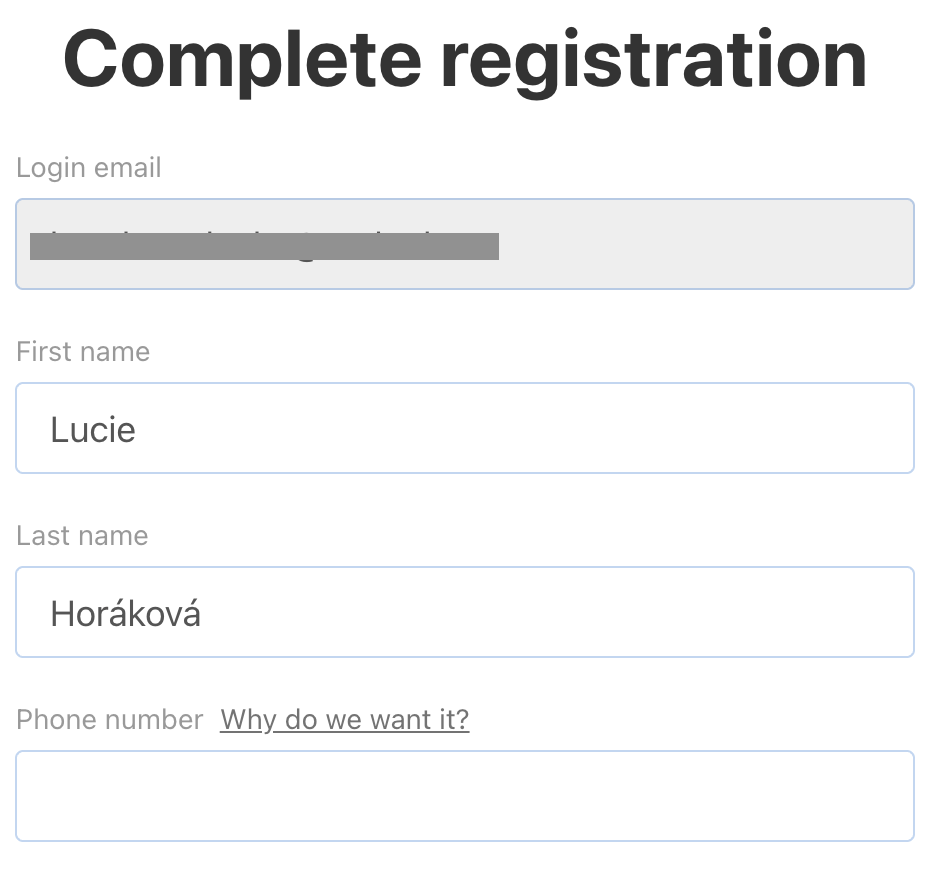
In the final step of the registration, your first and last name will be automatically pre-filled from your Microsoft account. You can edit these details and optionally add a phone number. Then click Create account – and you’re done.
Via invitation
- registration using email, or
- registration using a Microsoft account
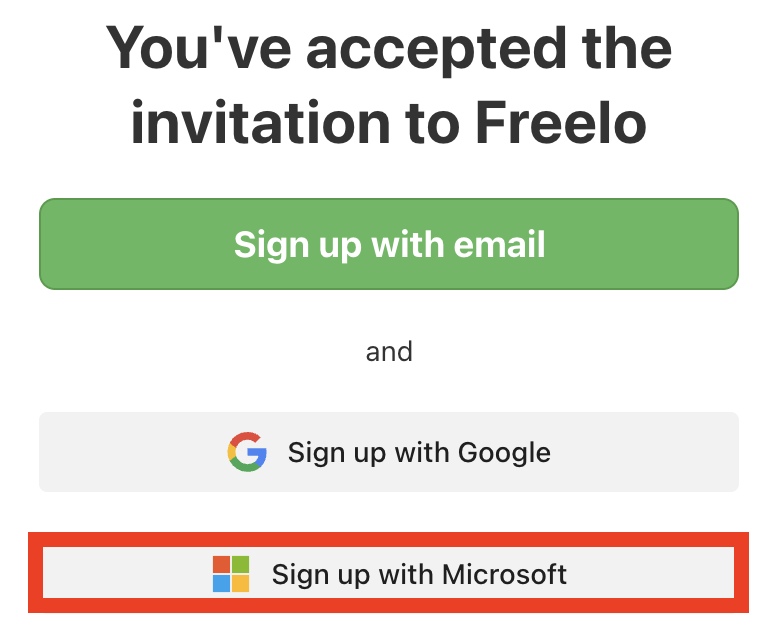
This is what the invitation link to Freelo from an email looks like.
Sign-in
User registered via Microsoft
When signing in, simply click Sign in with Microsoft and select the Microsoft account you used to register with Freelo.
User not registered via Microsoft
You can link your Freelo account to a Microsoft account later. There are two options:
Via account settings (recommended)
- Click your avatar in the top right corner.
- Go to Settings → Security and sign-in.
- In the Sign-in section, select Set up Microsoft sign-in.
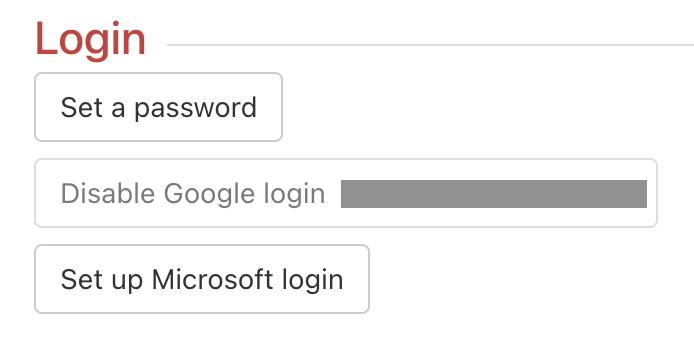 Select Microsoft login.
 -
A modal window will open and guide you through the verification process.
-
For security reasons, you will be asked to enter your Freelo password.
-
Select the Microsoft account you want to link with Freelo.
After completion, you can sign in using the Microsoft button.
From the sign-in page (signed-out user)
- Go to the Freelo sign-in page.
- Click Sign in with Microsoft.
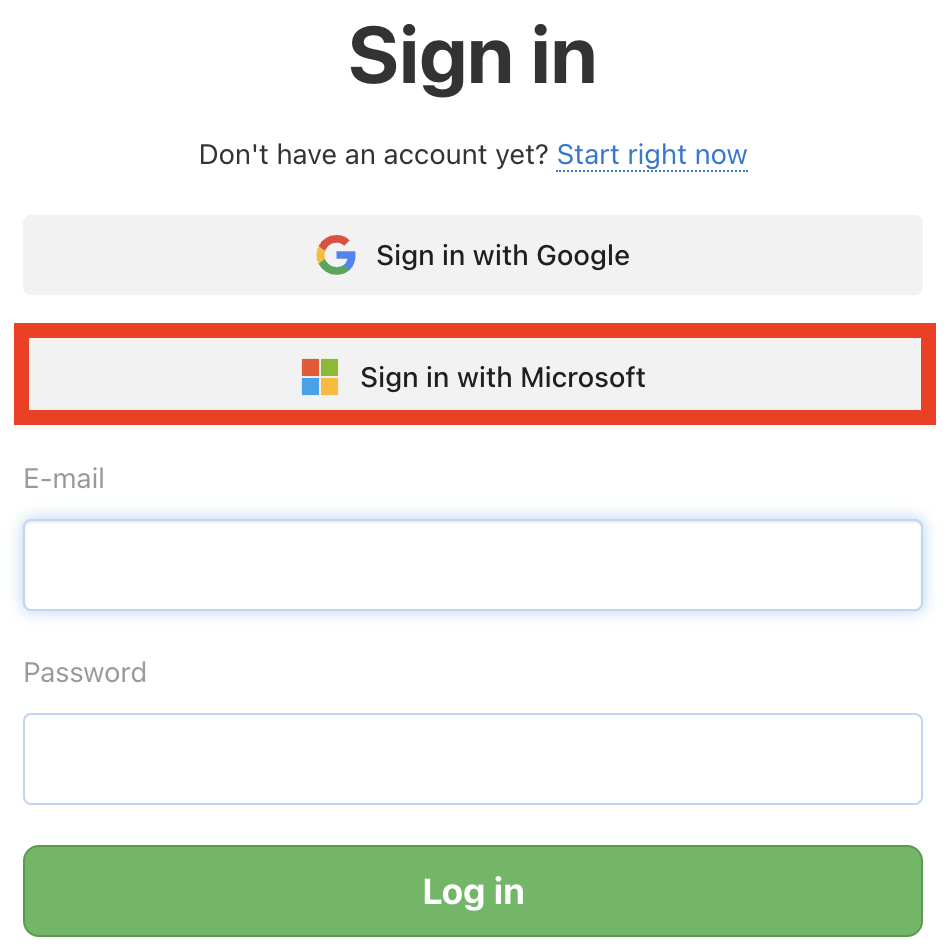
Link your Freelo account with Microsoft using the button. -
Select the Microsoft account under which your Freelo account is registered.
-
The first sign-in will still be completed using the original method (email and password).
-
You have a Freelo account registered with a different email than Microsoft
- one email for standard sign-in (email and password),
- a different email for Microsoft sign-in.
The process is the same:
- Settings → Security and sign-in
- Set up Microsoft sign-in
-
Select the Microsoft account and enter your Freelo password
After that, you can sign in using both methods.
Using Google and Microsoft sign-in on one account
In Freelo, it is possible to use both Google and Microsoft sign-in for one and the same account. Each sign-in method can be linked to a different email address.
How does it work in practice?
- One Freelo account can have:
- standard sign-in (email and password),
- sign-in via a Google account,
-
sign-in via a Microsoft account.
-
Google and Microsoft sign-in work independently of each other.
- It is not a problem if:
- the Google account uses a different email than the Microsoft account,
-
and both are linked to the same Freelo account.
Each sign-in method is set up separately:
-
Setting Microsoft account sign-in. Go to Settings → Security and sign-in.
- In the Sign-in section, set up:
- Google sign-in,
-
and/or Microsoft sign-in.
-
To complete the linking, you must enter your Freelo password for security reasons.
Frequently Asked Questions
Can I remove the Microsoft account connection in the future?
Yes, if you have a password set in Freelo.
- Go to Settings → Security and sign-in.
- In the Sign-in section, remove the Microsoft account connection.
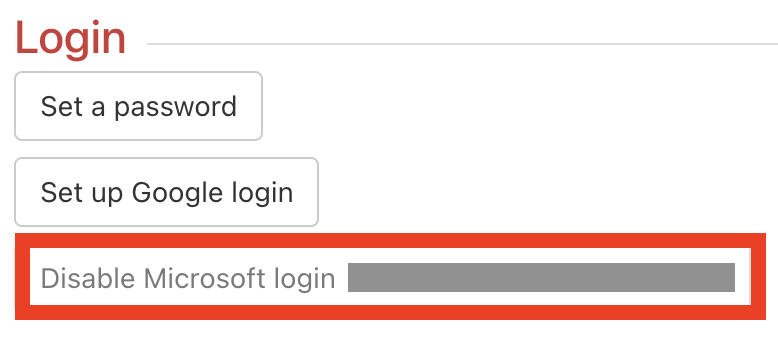
Removing Microsoft account sign-in. -
To confirm, you will need to enter your Freelo password.
What about an account created via Microsoft registration?
If you do not have a Freelo password set, the Microsoft account connection cannot be removed.
To unlink the Microsoft account, you must first set a password for standard sign-in.
Can I change the linked Microsoft account?
First, remove the existing connection and then set it up again with a different Microsoft account.
The selected Microsoft account must not already be linked to another Freelo account..
Which email address will receive Freelo notifications?
Notifications are sent to the email address used during registration. This also applies to registration via Microsoft.
-
check,
-
or change